
Fiber Optic WiFi Router: How to Choose One in 2026
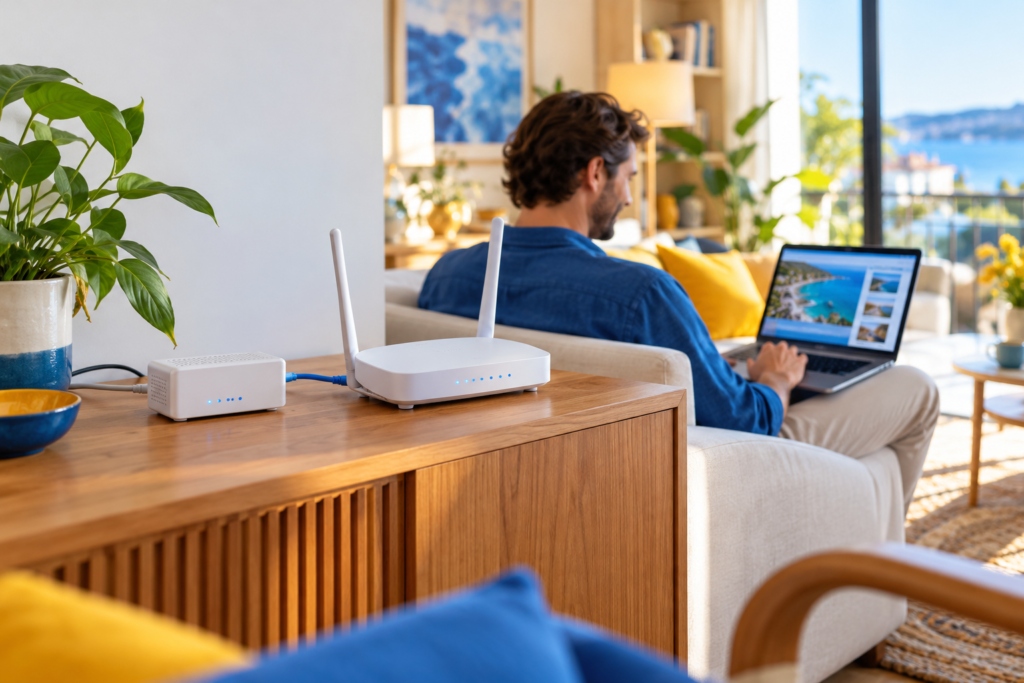
In short, here’s what you’ll discover in this article: a fiber optic WiFi router usually connects to your provider’s ONT through Ethernet. Learn which ports, WiFi features, and ISP settings matter before choosing or replacing one.
Do you need a special router for fiber internet?
Not necessarily. If your provider supplies a separate optical network terminal, or ONT, a compatible Ethernet-WAN router can distribute the connection. The ONT handles the optical signal; the router builds your home network. However, your provider’s authentication requirements and bundled services still matter.
Searching for a fiber optic WiFi router can bring up very different products: ordinary WiFi routers, integrated fiber gateways, and specialist optical equipment. Therefore, identify your existing connection before buying anything. A fiber label alone does not establish compatibility.
How fiber reaches your WiFi devices
In a separate-ONT installation, the path is straightforward: fiber line → ONT → Ethernet → router → devices. Your laptop then connects through WiFi or a wired LAN port. Fiber describes the incoming broadband connection, not the wireless signal inside your home.

ONT, router, and gateway: the difference
The ONT converts optical signals into electrical data. Meanwhile, the router connects your local devices to the internet and usually provides WiFi. An integrated fiber gateway combines several functions in one enclosure, so you may not see a separate ONT.
For a concrete installation example, ASUS’s official ONT setup guide shows fiber reaching the ONT and Ethernet connecting it to the router’s WAN port. Its provider-specific settings are examples, not universal instructions.
⚠️ Do not buy a cable modem as a fiber replacement. Also, an SFP slot is not proof that a router can accept your provider’s optical connection. Ask the ISP to confirm supported equipment and provisioning before replacing optical hardware.
What to check before choosing a fiber router
Start with ISP compatibility and port speeds, then consider wireless coverage. This order prevents an expensive WiFi upgrade from leaving the original bottleneck untouched. Use the checklist to compare specifications rather than marketing names.
| Check | What to look for | Why it matters |
|---|---|---|
| Internet handoff | Separate ONT with Ethernet, or an integrated gateway | Determines whether a standard Ethernet-WAN router fits |
| WAN port | Gigabit or multi-gigabit capability matched to the plan | Limits incoming internet throughput |
| LAN ports | Enough ports at the speeds your wired devices need | A fast WAN port cannot overcome a slower LAN link |
| WiFi support | Features supported by both router and client devices | Devices cannot use wireless features they do not support |
| Coverage | Placement options and compatible mesh expansion | Walls and distance can matter more than the WiFi generation |
| Software support | Security updates, admin controls, and ISP settings | Compatibility and maintenance matter after installation |
Match the wired path to your plan
For a plan up to gigabit speed, Gigabit Ethernet is a sensible starting point. However, usable application throughput is lower than the port’s nominal link rate. If you want more than gigabit speeds on one wired computer, check the entire path.
For example, a multi-gigabit plan and a 2.5 GbE WAN port do not remove a 1 GbE LAN bottleneck. The ONT handoff, LAN port, switches, cabling, and computer adapter must all support the intended speed. Router processing and enabled features can also constrain throughput.

TP-Link’s router speed FAQ explains the distinction between wireless link rates and internet throughput. Consequently, do not treat the large wireless speed printed on a box as a guaranteed download speed.
Choose WiFi for your devices, not just the newest label
- WiFi 6: a practical option for everyday streaming, calls, and browsing when coverage is adequate.
- WiFi 6E: adds access to the 6 GHz band, but using that band requires compatible devices.
- WiFi 7: worth evaluating for newer devices and demanding networks; check the actual bands, ports, and supported features.
In particular, not every WiFi 7 router includes 6 GHz. Likewise, a newer standard does not make walls disappear. Compare the hardware you will actually use, rather than assuming every headline feature comes with every model.
One router or a mesh system?
A single, well-positioned router may suit a smaller home. Keep it in an open location rather than inside a cabinet. If the fiber entry point is inconvenient, an Ethernet connection can let you position the router elsewhere.
For multiple floors or persistent dead zones, consider compatible mesh nodes or wired access points. Where supported, Ethernet backhaul connects nodes through cables instead of relying on wireless links. Check backhaul support for the exact system and hardware version.
💡 Test coverage before replacing everything. Compare a wired connection, WiFi beside the router, and WiFi in the problem room. If only the distant room struggles, investigate placement or coverage before upgrading the broadband plan.
Can you replace your ISP’s fiber router?
Sometimes, but the answer depends on the provider and installation. A separate ONT with Ethernet can simplify replacement. Nevertheless, an integrated gateway may need to remain connected for authentication or other services.
For example, eero’s Fios instructions distinguish internet-only installations from setups that include TV. AT&T also documents IP Passthrough for connecting third-party networking equipment. Therefore, do not copy another subscriber’s configuration without checking your own gateway and service package.
- Ask whether customer-owned routers are supported for your installation.
- Confirm whether the WAN connection uses DHCP, PPPoE credentials, VLAN settings, or another requirement.
- Check whether TV or phone services require the supplied equipment.
- Ask which mode is appropriate: direct ONT connection, supported passthrough, or access-point mode.
- Save the original configuration and keep the supplied equipment available.
⚠️ Two routers both performing NAT can create double NAT. This can complicate inbound connections and some gaming configurations. If the ISP gateway stays in charge, access-point mode on the additional WiFi device may be the appropriate option.
Set up and test the connection
Once compatibility is confirmed, follow the provider’s instructions and your router’s manual. Menu names and required settings vary. Avoid changing the optical side of the installation unless the ISP explicitly instructs you to do so.
- Identify the handoff. Locate the ONT’s Ethernet output or the gateway port specified by your provider.
- Connect the router. Use its designated WAN port and apply the required ISP settings.
- Secure the network. Update firmware, change the administrator password, and configure supported WiFi security.
- Test a wired device. Check negotiated link speed and run several internet tests.
- Compare WiFi locations. Test near the router and in the rooms where you need coverage.
If everything is slow, investigate the WAN link, cabling, configuration, and provider connection. If wired performance is good but WiFi is poor, focus on wireless conditions. This comparison narrows the problem before another purchase.
Need backup internet while fiber is unavailable?
A phone hotspot can keep essential tasks running during an outage. Our guide to using a phone as a WiFi router explains that alternative. For dedicated cellular hardware, compare the requirements in our 5G router with SIM card slot guide.
Before choosing mobile backup, estimate how much data you need. Prioritize calls and essential work rather than large downloads. Check local coverage, tethering permissions, and device compatibility; do not assume a travel eSIM works inside a dedicated router.
How much data for your trip?
Estimate your data needs in seconds based on your habits: streaming, social media, browsing.
Calculate my data needsFAQ
Can a normal WiFi router work with fiber internet?
Yes, when the service provides an Ethernet handoff and the router supports the required WAN configuration. Confirm compatibility with the ISP, especially when replacing an integrated gateway or keeping bundled services.
Can I plug a fiber optic cable directly into my router?
Only if the router includes compatible optical termination and the ISP supports and provisions that setup. A standard Ethernet WAN port cannot accept optical fiber. A separate ONT is the usual intermediary in the layout described here.
Will a faster router increase my fiber internet speed?
It can remove a local bottleneck, such as an outdated WAN port or inadequate wireless coverage. However, it does not upgrade your subscribed broadband plan. Test wired and wireless performance separately before deciding.
Do I need WiFi 7 for gigabit fiber?
No. The right choice depends on your client devices, coverage, and performance goals. WiFi 7 features require compatible hardware to deliver their full benefits. Do not overlook port speeds or placement.
Is a fiber router the same as a 5G router?
No. A fiber setup receives fixed broadband through an optical connection, usually with an ONT or integrated gateway. A cellular router receives internet through a mobile network. Both can distribute that connection through WiFi.

Passionate about travel and tech, I have combined these two worlds to help travelers understand the numerous options to get Internet access abroad and identify the best option for them. As a software development engineer, I put my skills at the service of simple, practical and transparent content. My goal is to give you all the keys to stay connected easily and at the best price during your trips. 🌍📲