
Galaxy WiFi Calling: Setup & Fixes (2026)

In short, here’s what you’ll discover in this article: enable Galaxy WiFi calling, check that calls really use Wi-Fi, and fix a missing switch. You will also learn what to check before using your regular number abroad or adding a travel eSIM.
How to turn on Wi-Fi calling on your Galaxy
Start with Settings → Connections → Wi-Fi Calling. Turn the switch on, then complete any emergency-address registration. Samsung requires an active SIM or eSIM service and a Wi-Fi connection. Availability depends on your device and carrier, not just the Galaxy name.
- Connect your Galaxy to a working Wi-Fi network.
- Open Settings → Connections → Wi-Fi Calling.
- Enable the feature. If separate line controls appear, choose the line you want to use.
- Review and save any emergency information your carrier requests.
- Open your usual Phone app and make a normal test call.
These steps follow Samsung’s Galaxy Wi-Fi Calling instructions. Menu labels can differ between software versions and carriers. If your screen looks different, try the alternatives next.
Other places to find the switch
Samsung’s UK guidance also describes Phone → three-dot menu → Settings → Wi-Fi Calling. Some Galaxy phones offer a Quick settings tile, too. Open the expanded panel and look for Wi-Fi Calling. A missing tile alone does not prove the feature is unavailable.
If available, Wi-Fi preferred favors wireless internet for calls. Mobile network preferred favors cellular coverage instead. The alternative connection can take over when the preferred network is unavailable. These choices depend on your carrier, so do not worry if your phone only shows a switch.
What Galaxy WiFi calling actually does
Wi-Fi calling connects your normal phone service through Wi-Fi. Your carrier still handles the call. You dial from your regular Phone app, rather than asking everyone to install another calling app. Google’s Phone help confirms that supported carrier Wi-Fi calls work like ordinary calls after setup.
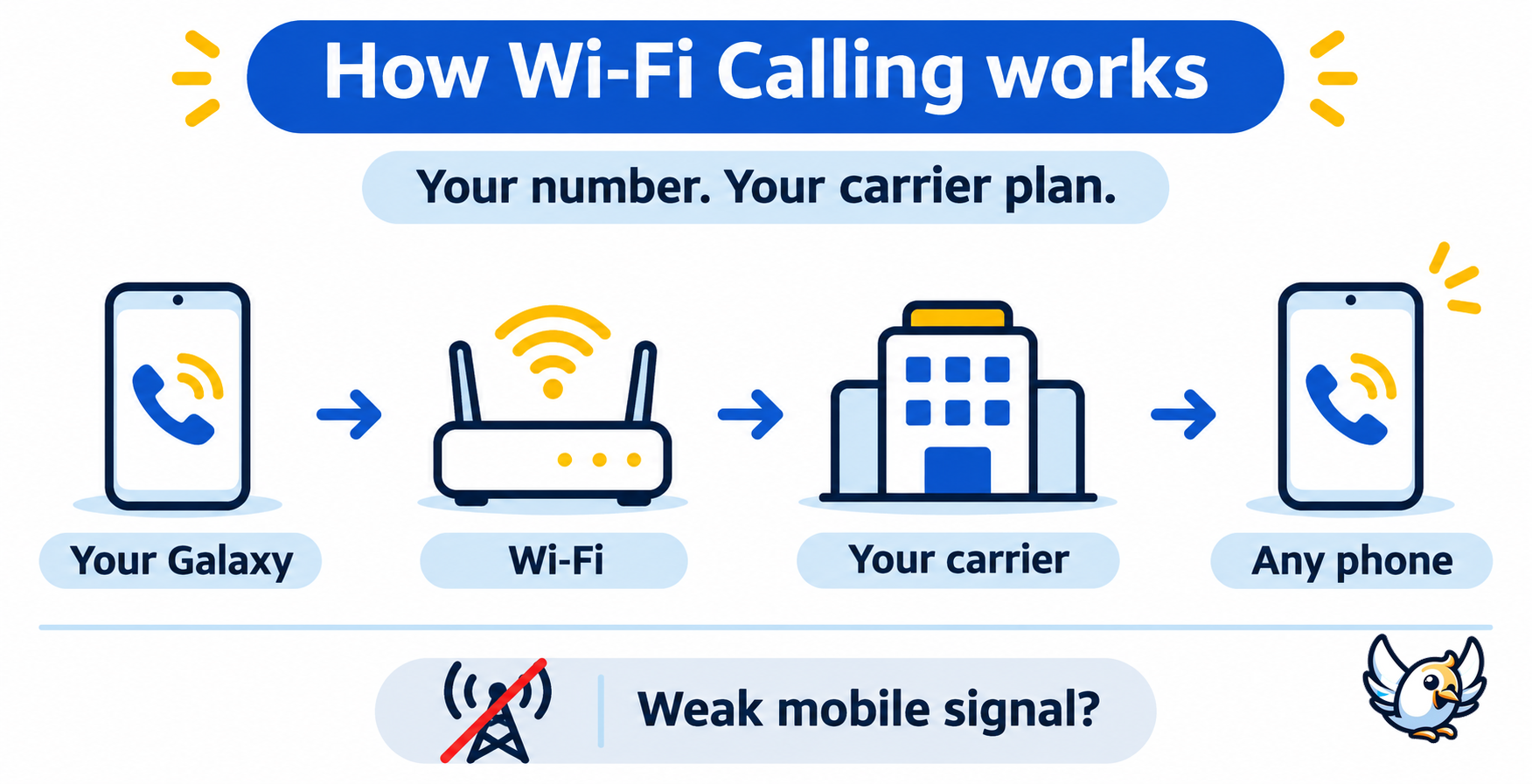
For a household with poor indoor reception, this provides another route for conversations. However, a Wi-Fi symbol is not proof that a call uses Wi-Fi. It confirms the phone’s connection, not necessarily the route chosen for your call.
How to check whether a call uses Wi-Fi
Make a non-emergency test call and look for a Wi-Fi calling label or notification. Google describes “Internet Call” or “Wi-Fi calling” indicators; the exact display varies. Check the call screen and notifications rather than relying only on the enabled switch.
💡 Test both directions. Call someone you know, then ask them to call back. Note the network and displayed indicator. This gives support a clearer description than “the setting is on.” Never call emergency services to test the feature.
Wi-Fi calling missing or not working? Start here
Separate a missing setting from a failed connection. For a missing menu, Samsung advises checking carrier availability and activation. For a visible switch that does not work, start with connectivity. Change one thing at a time, then repeat the same test.
| Symptom | First check | What to record |
|---|---|---|
| Missing switch | Carrier activation | Exact model and software version |
| No Wi-Fi call indicator | Connection and calling preference | Label shown during a test call |
| Failure on one network | Another trusted Wi-Fi connection | Which network succeeds |
| Unreliable calls | Restart and software updates | Whether either changes the result |
| Still failing | Carrier account configuration | Tests already completed |
Work through the reversible checks first
Samsung’s troubleshooting guidance recommends checking Wi-Fi, restarting, and updating software before escalating. Use this order:
- Verify internet access: open a webpage on Wi-Fi.
- Recheck Wi-Fi Calling: make sure the switch remains enabled.
- Restart your Galaxy: then repeat your call.
- Check software updates: install available updates when convenient.
- Try another trusted network: compare results before resetting settings.
Samsung lists network reset options under General management → Reset, including Reset mobile network settings and Reset Wi-Fi and Bluetooth settings. Read the option carefully before proceeding.
⚠️ A network reset removes saved configurations covered by that option. Keep the necessary passwords and settings handy. If basic checks fail, ask your carrier to confirm account support and configuration before considering more disruptive steps.
Is Galaxy Wi-Fi calling free, including abroad?
Wi-Fi is a connection method, not a promise of free calls. Your carrier’s billing rules still matter. Before traveling, ask about three things: the country you visit, the number you dial, and your plan’s international calling terms.
For example, Verizon’s international travel guidance distinguishes calls back to US numbers from calls to other countries. Therefore, calling a local restaurant overseas may be treated differently from calling home. Do not apply one carrier’s rules to another.
Verizon also explains that internet access itself can carry a charge. A paid hotel network and the call’s carrier billing are separate considerations. Check both rather than assuming the Wi-Fi label settles the cost question.
Keep your emergency address current. Verizon warns that an outdated registered location can affect emergency-call routing. Tell the emergency operator where you actually are. For ordinary setup testing, use a friend or family member instead.
Can you use Galaxy Wi-Fi calling with a travel eSIM?
Treat your home number and travel internet as separate services. Before buying a data-only eSIM, ask whether it includes voice service. Do not assume it replaces your home number or guarantees Wi-Fi calling for that line.
First, check whether your exact Galaxy variant supports eSIM. That is a different question from whether your carrier enables Wi-Fi calling. Confirm both before building your travel setup around them.
Is your phone eSIM-compatible?
Check the full list of compatible smartphones: iPhone, Samsung, Google Pixel and 200+ models.
Check compatibilityNext, ask your home carrier whether Wi-Fi calling is available at your destination. If you want calls to use the other SIM’s mobile data, ask about that exact arrangement. Do not assume dual-SIM capability guarantees it. Request confirmation for your model, software, and home line.
Our guide to Wi-Fi calling abroad with an eSIM explores the travel setup. If someone in your group uses Apple, share our iPhone Wi-Fi calling setup guide instead of these Galaxy menu paths.
Before departure, write down which line handles calls and which handles data. Then ask your carrier how to block unwanted cellular roaming without disabling the services you need. Test the agreed setup before relying on it for important calls.
FAQ
Why is Wi-Fi calling missing on my Samsung Galaxy?
The menu depends on your carrier and device. Check Connections and the Phone app settings. If neither shows it, ask your carrier whether your exact Galaxy model and account support the feature.
Can I receive calls and texts through Wi-Fi calling?
Samsung describes support for incoming calls and messages over Wi-Fi, subject to network availability. Test both before relying on them. Include any particular message type you need, rather than assuming every messaging service behaves identically.
Should I leave Wi-Fi calling turned on?
It can be useful where indoor reception is poor. Keep it enabled if your tests work reliably. Review the calling preference when available, and check your carrier’s billing rules before international use.
Does a Galaxy need a SIM for Wi-Fi calling?
Samsung’s setup instructions require active service through a SIM or eSIM. Joining Wi-Fi alone does not activate your regular mobile number. Calling through a separate internet app is a different arrangement.
How do I turn Wi-Fi calling off?
Return to the Wi-Fi Calling menu and switch it off. If your phone provides a Quick settings tile, you can use that instead. Check the selected line if separate controls appear.

Passionate about travel and tech, I have combined these two worlds to help travelers understand the numerous options to get Internet access abroad and identify the best option for them. As a software development engineer, I put my skills at the service of simple, practical and transparent content. My goal is to give you all the keys to stay connected easily and at the best price during your trips. 🌍📲