
Share WiFi Password on iPhone: 3 Easy Ways (2026)

In short, here's what you'll discover in this article: the fastest way to share a WiFi password from an iPhone, the QR-code and copy-password alternatives, and the exact checks to make when the sharing pop-up does not appear.
You do not need to read a long password aloud or type it character by character. If both people use Apple devices, your iPhone can send the network credentials securely after the other person selects the network. The process usually takes only a few seconds.
This guide also covers guests using Android or Windows, saved networks, Personal Hotspot, and the common reasons iPhone WiFi password sharing fails.
How to share a WiFi password on iPhone
The quickest method works between a nearby iPhone, iPad, or Mac. Before starting, unlock the iPhone that is already connected to the network. Then check that WiFi and Bluetooth are enabled on both devices.
- On the receiving device, open Settings > Wi-Fi and tap the network to join.
- Keep the connected iPhone unlocked and close to the receiving device.
- When the invitation appears on the connected iPhone, tap Share Password.
- Wait for the other device to connect, then tap Done.
Apple says both people should be signed in to their Apple Accounts and have each other’s Apple Account email address or phone number saved in Contacts. Personal Hotspot should also be off during this process. You can confirm the latest requirements in Apple’s WiFi password sharing instructions.
💡 Keep both phones on the WiFi settings screen and place them side by side. Proximity, an unlocked screen, and the correct network selection make the prompt appear more reliably.

Three ways to share WiFi access from an iPhone
The native pop-up is usually best, but it is not your only option. Choose a method based on the guest’s device and whether you want them to see the actual password.
| Method | Best for | Reveals the password? | Main requirement |
|---|---|---|---|
| Share Password pop-up | iPhone, iPad, or Mac | No | Nearby Apple devices and saved contacts |
| WiFi QR code | Guests and mixed devices | Not during normal scanning | A supported QR-code option or generator |
| Copy the saved password | Manual entry on any device | Yes | Face ID, Touch ID, or device passcode |
1. Use the Share Password pop-up
This is the most private and convenient option for Apple devices. The receiving person chooses your WiFi network, while your connected iPhone displays the approval prompt. The recipient joins without you dictating or displaying the password.
The transfer uses nearby-device checks rather than sending the password in a message. Therefore, it is a better choice than posting credentials in a group chat or leaving them written in a visible place.
2. Share the network with a QR code
A QR code is useful when a visitor uses Android, when several guests need access, or when the contact-based Apple prompt is inconvenient. On current iPhone software, open the Passwords app, tap Wi-Fi, select the network, and look for Show Network QR Code. The guest can scan it with their camera.
The exact label can vary by software version. If your iPhone does not show this option, reveal and copy the saved password instead, or create a QR code only with a trusted offline tool.
⚠️ Treat a WiFi QR code like the password itself. Anyone who photographs or receives it may be able to join later. Do not display your main home-network code publicly.
3. Find and copy the WiFi password
To retrieve a saved network password, open the Passwords app > Wi-Fi, choose the network, and tap the password field. Authenticate with Face ID, Touch ID, or your passcode. You can then copy the password and paste it where needed.
You can also inspect the current network through Settings > Wi-Fi, tap the information button beside its name, and tap the password field. Apple provides additional steps for current and previously joined networks in its saved WiFi password guide.
What must be enabled before sharing?
Most failures come from one missing prerequisite rather than a broken iPhone. Run through this short checklist before changing network settings:
- Update both devices to a recent compatible system version.
- Turn on WiFi and Bluetooth for both devices.
- Turn off Personal Hotspot on both iPhones.
- Sign in to an Apple Account on each Apple device.
- Save each person’s Apple Account email address or phone number in Contacts.
- Unlock the sharing iPhone and confirm it is already connected to the correct network.
- Keep both devices close together while the recipient selects the network.
💡 Check the contact card carefully. A person’s everyday email address may differ from the email used for their Apple Account. Saving the correct address on both devices often fixes a missing prompt.
Why is Share Password not showing?
If the pop-up never appears, do not keep tapping the network repeatedly. Work through the likely causes in order.
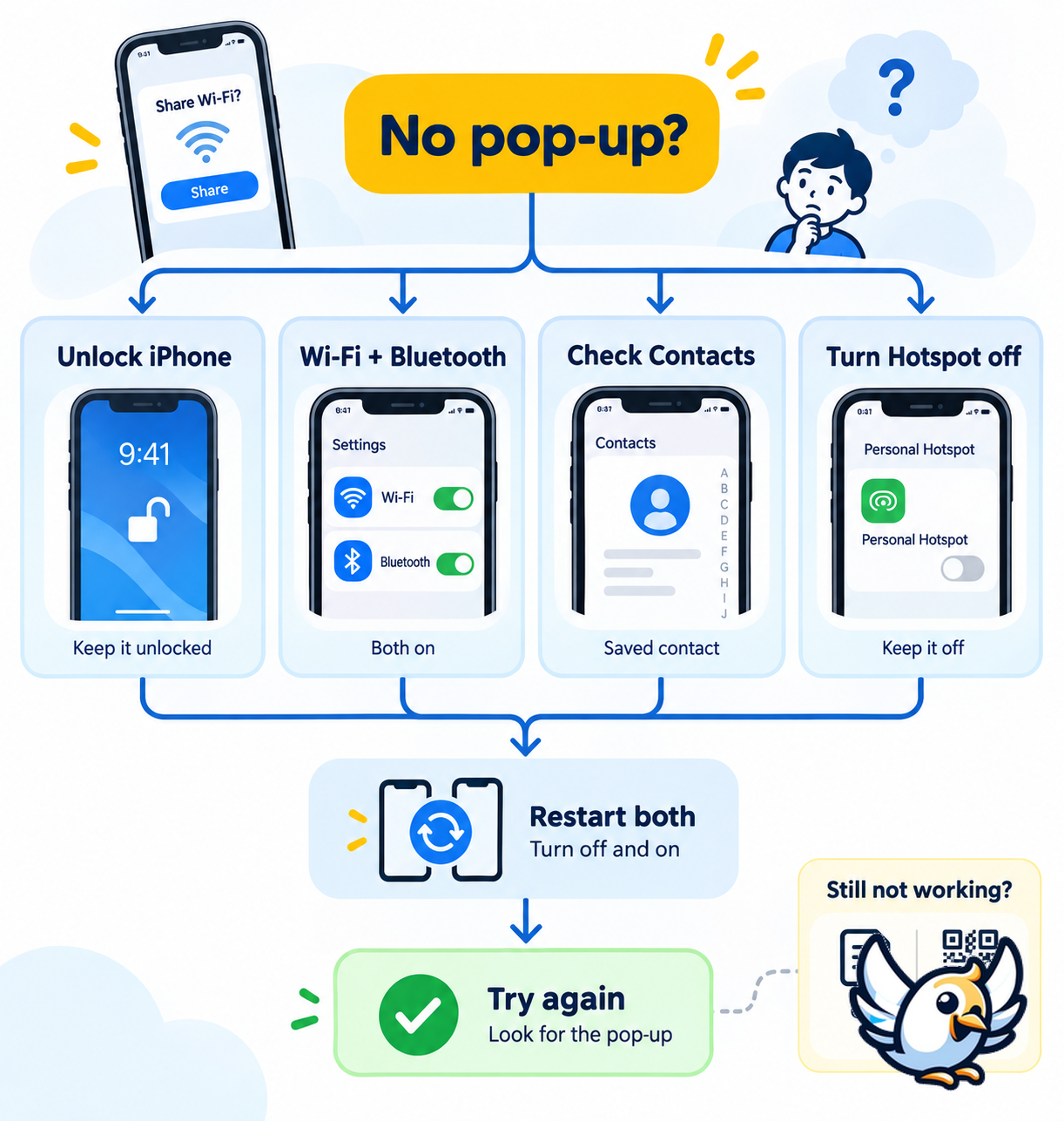
Unlock the connected iPhone
The iPhone holding the network credentials should be awake, unlocked, and connected to that WiFi network. Leave its screen on while the other person opens WiFi settings and selects the network.
Refresh WiFi and Bluetooth
Turn WiFi and Bluetooth off and back on in Settings on both devices. Then bring the devices close together and try again. Avoid relying only on Control Center if you want to perform a full radio reset.
Check Contacts and Apple Accounts
Confirm that both people are signed in. Next, verify that each contact card contains the email address or phone number associated with the other person’s Apple Account. This requirement protects against unexpected nearby sharing requests.
Disable Personal Hotspot
Password sharing concerns an existing WiFi network. It is different from sharing the iPhone’s cellular connection. Switch off Personal Hotspot on both devices, then repeat the normal process.
Restart both devices
If the animation still does not appear, restart both devices and test again. Apple recommends manual password entry when sharing remains unavailable. For broader connection problems, follow our guide for data not working on iPhone.
Can you share an iPhone WiFi password with Android?
The Apple Share Password prompt is designed for nearby Apple devices. For Android, the simplest options are a WiFi QR code or manual password entry. Open the network in the Passwords app, then use the QR-code option if available. Otherwise, authenticate to reveal the password and enter it on the Android phone.
For a regular guest, consider creating a separate guest network in your router settings. It keeps smart-home devices and personal computers away from visitor traffic. You can also change the guest password without disconnecting every device on your main network.
WiFi password sharing vs Personal Hotspot
These features solve different problems. Sharing a WiFi password lets someone join the same router network your iPhone already uses. Personal Hotspot shares your iPhone’s cellular data connection.
| Feature | Internet source | Typical use | Data impact |
|---|---|---|---|
| WiFi password sharing | Router or access point | Let a guest join home, hotel, or office WiFi | Uses the WiFi connection |
| Personal Hotspot | iPhone cellular plan | Connect a laptop or another phone without trusted WiFi | Uses mobile data |
An iPhone cannot normally join a WiFi network and rebroadcast that same network through Personal Hotspot. If you need to share a connection from a computer, see how Connectify Hotspot shares WiFi. When traveling, you may also want to configure iPhone WiFi Calling before departure.
What if there is no safe WiFi network?
Public WiFi can be slow, unavailable, or protected by a captive portal. In that situation, using your own cellular connection may be simpler than requesting a password. A travel eSIM can provide mobile data while keeping your physical SIM available for calls or account verification, provided your iPhone supports eSIM.
Here are our currently recommended eSIM providers for travelers who prefer their own connection:





Before installing a plan, confirm that your iPhone is unlocked and compatible. Older models and some region-specific variants differ, so owners can consult our iPhone XR eSIM compatibility guide when relevant.
Security tips when sharing WiFi
- Use a guest network for visitors whenever your router supports one.
- Share access only with people you trust.
- Avoid sending the password through unencrypted group messages.
- Remove old QR-code printouts after changing the network password.
- Use modern router security such as WPA2 or WPA3.
- Change the password if it has been shared beyond the intended group.
⚠️ Never approve a password-sharing prompt if you do not recognize the person or device. The prompt should appear only when someone nearby is actively selecting your network.
FAQ
How do I share my WiFi password from iPhone to iPhone?
Connect and unlock the first iPhone. On the second iPhone, open Settings > Wi-Fi and tap the network. Keep the devices close, then tap Share Password on the connected iPhone when the prompt appears.
Why does my iPhone not offer to share the WiFi password?
Check that WiFi and Bluetooth are on, Personal Hotspot is off, both devices are unlocked and nearby, and both people have the correct Apple Account contact details saved. If needed, restart both devices.
Can I share a WiFi password without showing it?
Yes. The native Share Password prompt lets a nearby iPhone, iPad, or Mac join without displaying the password to the recipient. A QR code also avoids manual typing, although the code itself should still be protected.
How do I see a saved WiFi password on my iPhone?
Open Passwords, tap Wi-Fi, choose a saved network, and tap the password field. Authenticate with Face ID, Touch ID, or your device passcode to reveal or copy it.
Can an iPhone share WiFi with an Android phone?
Not through Apple’s contact-based Share Password pop-up. Instead, show a WiFi QR code that the Android phone can scan, or reveal the saved password and enter it manually.

Passionate about travel and tech, I have combined these two worlds to help travelers understand the numerous options to get Internet access abroad and identify the best option for them. As a software development engineer, I put my skills at the service of simple, practical and transparent content. My goal is to give you all the keys to stay connected easily and at the best price during your trips. 🌍📲